
How to Convert Video to LivePhoto: Complete Guide (2025)
How to Convert Video to LivePhoto: Complete Guide (2025)
Article Info:
- Title: How to Convert Video to LivePhoto: Complete Guide (2025)
- Slug: how-to-convert-video-to-livephoto
- Locale: en
- Description: Learn how to convert any video to iPhone LivePhoto. Step-by-step tutorials for best free apps: intoLive, VideoToLive & more. MP4/MOV to LivePhoto converter guide.
- Author: LivePhoto.video
- Cover: /images/blog/video-to-livephoto-guide.jpg
Introduction
Due to web browser limitations, we cannot directly convert videos to true LivePhoto format on websites. LivePhoto is a proprietary format developed by Apple that can only be created through iOS native apps or specific third-party applications.
However, you can easily complete the conversion through this two-step process:
- Step 1: Use our online tool to trim your video to a 3-second clip
- Step 2: Use an iPhone app to convert the trimmed video to a real LivePhoto
This comprehensive guide covers the entire process, including tutorials for multiple tested free applications.
Step 1: Trim Your Video with LivePhoto.video
Before starting, you need to prepare a suitable 3-second video clip.
How to Use Our Tool:
-
Access Our Video Converter
- Visit our Video to LivePhoto page
- Upload your video file (supports MP4, MOV, and other formats)
-
Select the Best Segment
- Use the timeline to choose your desired 3-second clip
- Preview the effect to ensure smooth, natural footage
- Adjust aspect ratio (supports 1:1, 9:16, 16:9, etc.)
-
Download the Trimmed Video
- Click the "Convert Video" button
- Wait for processing to complete, then download the 3-second video file
- Save the video to your iPhone camera roll
Step 2: Choose the Right Conversion App
Start with our official companion app (built by the same team behind LivePhoto.video), then explore the other trusted options below if you need advanced editing or niche features.
Method 1: Using Lively (Official LivePhoto.video App)
Lively: Video to Motion Photo is the native iOS companion to our web trimmer, designed for a seamless "trim on web → convert on phone" workflow.
Why Choose Lively?
- ✅ Built by the LivePhoto.video team for a frictionless pipeline
- ✅ Precise trim, speed, and cover-frame controls before export
- ✅ Exports high-resolution Motion Photos, looped videos, and GIFs without watermarks
- ✅ Clean gallery to organize creations and share later
- ✅ Works on iPhone/iPad running iOS 15 or later
Step-by-Step:
-
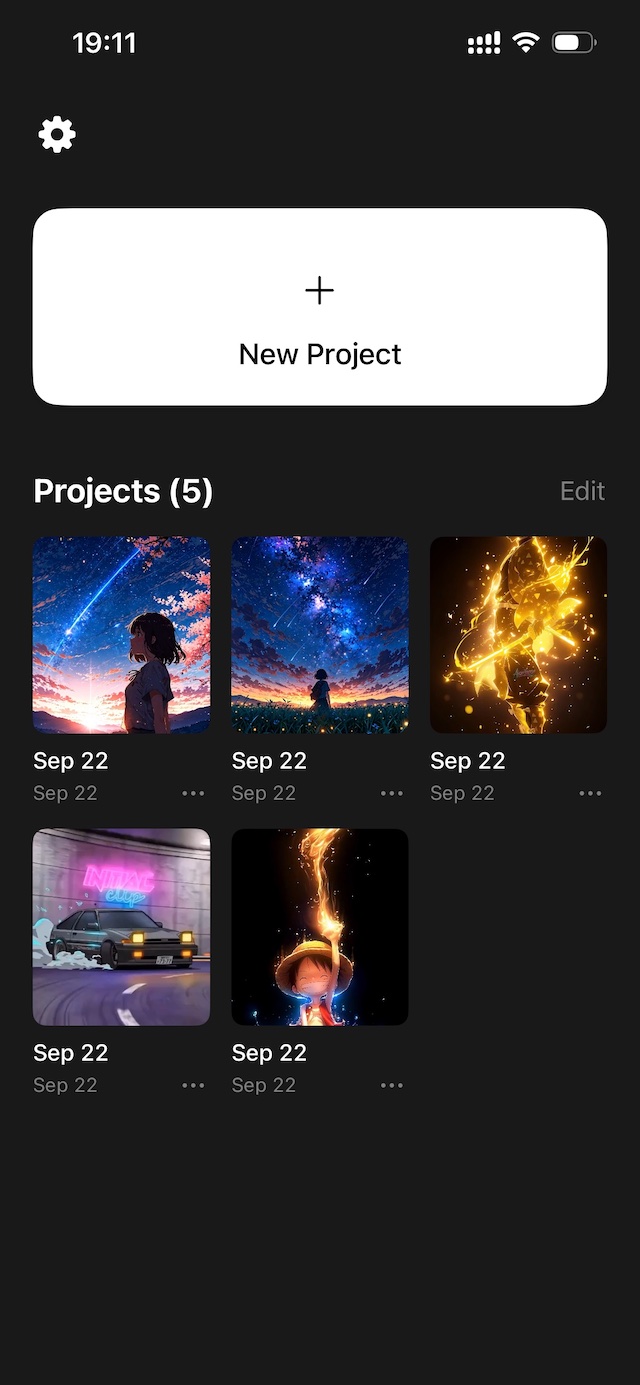
Tap “New Project” on the Home Screen
- Install Lively: Video to Motion Photo and open the app
- On the home screen, tap
New Project, then pick the 3-second clip you trimmed on LivePhoto.video (Photos, Files, or AirDrop) -
-
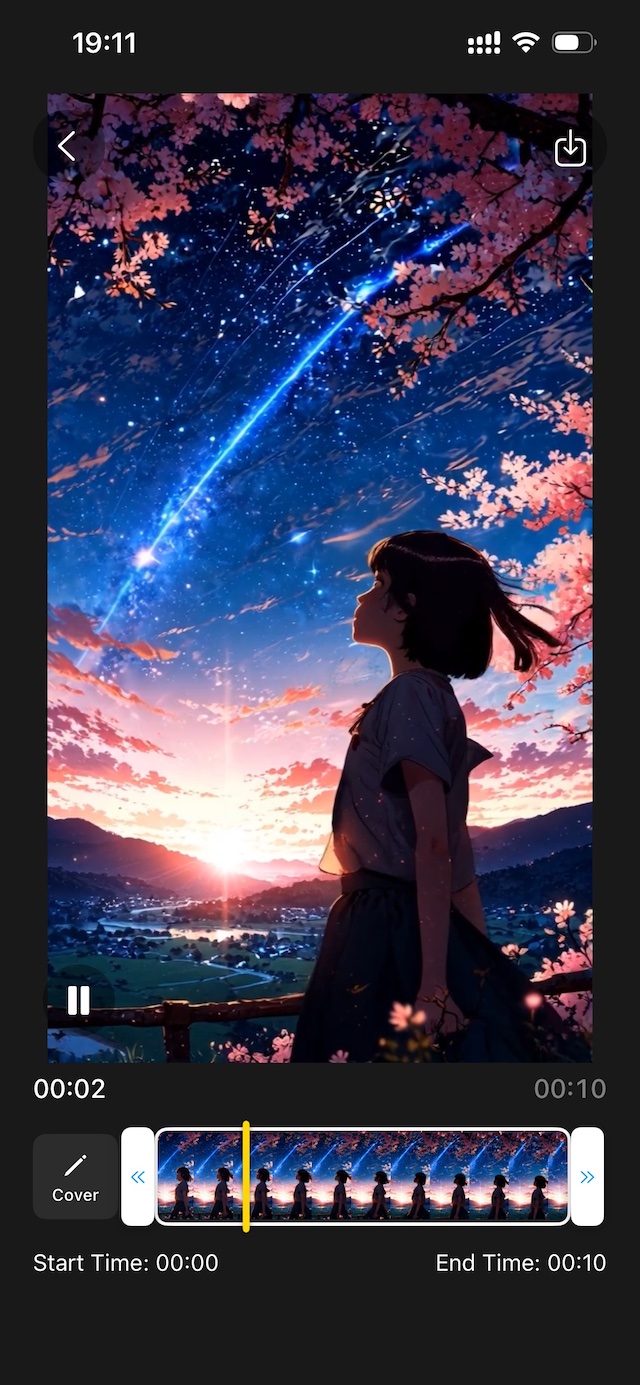
Fine-Tune and Export
- Use the timeline to make frame-level tweaks, adjust playback speed, or change the cover frame as needed
- When you're happy with the preview, tap the export icon in the top-right corner and choose Save as Live Photo to send it to your camera roll
- You can also export a looped video/GIF and keep every project organized inside Lively's gallery
-
Method 2: Using intoLive (Most Recommended Third-Party App)
intoLive is currently the most popular and stable video-to-LivePhoto app.
Why Choose intoLive?
- ✅ Completely free (basic features)
- ✅ Simple operation with user-friendly interface
- ✅ Supports high-quality output
- ✅ Can directly set as wallpaper
- ✅ Compatible with all iPhone 6s and newer models
Detailed Steps:
-
Download and Install
- Download intoLive - Live Wallpapers from the App Store
-
Import Video
- Open the intoLive app
- Tap "Video to Live Photo"
- Select your 3-second video from the camera roll
-
Edit and Adjust
- Use the bottom slider to precisely select the video segment
- Add filter effects (optional)
- Adjust playback speed (optional)
- Add text or stickers (optional)
-
Generate LivePhoto
- Tap the "Make" button in the top-right corner
- Choose repeat count (free version only allows "No Repeat")
- Tap "Save Live Photo"
-
Set as Wallpaper
- Find the generated LivePhoto in your camera roll
- Tap the share button
- Select "Use as Wallpaper"
- Ensure the LivePhoto icon is enabled
- Choose "Set Lock Screen" or "Set Both"
intoLive Limitations:
- Free Version: Process videos up to 5 seconds, no repeat playback
- Pro Version: Process videos up to 30 seconds, supports multiple loops
Method 3: Using VideoToLive
VideoToLive is the most comprehensive LivePhoto creation tool.
VideoToLive Features:
- ✅ Supports video collaging
- ✅ Built-in GIF maker
- ✅ Advanced editing tools
- ✅ Batch processing capabilities
Usage Steps:
-
Install the App
- Download VideoToLive - Live Wallpapers from the App Store
-
Select Function
- Open the app and choose "Video to Live Photo"
- Import your 3-second video file
-
Advanced Editing
- Use video collage feature to combine multiple clips
- Add transition effects
- Adjust color and contrast
-
Export LivePhoto
- Preview the final result
- Tap export and choose LivePhoto format
- Save to camera roll
Method 4: Using Video to Live Wallpaper
Video to Live Wallpaper is perfect for users who need batch processing.
Main Advantages:
- ✅ Supports multiple image sequences to LivePhoto
- ✅ No duration limit (but actual playback ~1.5 seconds)
- ✅ Works completely offline, protecting privacy
- ✅ One-tap wallpaper setting
Operation Process:
-
Download and Install
- Download Video to Live Wallpaper from the App Store
-
Batch Import
- Select single video or multiple images
- Supports batch selection from camera roll (up to 10 images)
-
Create LivePhoto
- Set playback order
- Adjust frame duration
- Generate LivePhoto with one tap
-
Direct Wallpaper Setting
- Set as lock screen wallpaper directly within the app
- No manual camera roll operations needed
Universal Steps for Setting LivePhoto Wallpaper
Regardless of which app you use, the steps for setting LivePhoto wallpaper are similar:
-
Find Your LivePhoto
- Locate the generated LivePhoto in the iPhone Photos app
- Confirm the "LIVE" indicator in the top-right corner
-
Set as Wallpaper
- Tap the share button (square with arrow icon in bottom-left)
- Scroll down to find "Use as Wallpaper" option
- Tap to enter wallpaper settings
-
Enable Live Effect
- Ensure the Live Photo circular icon at the bottom is lit
- Long-press to preview the Live effect
-
Choose Application Scope
- "Set Lock Screen": Lock screen only
- "Set Home Screen": Home screen only
- "Set Both": Both lock and home screens
-
Test the Effect
- Lock your iPhone and long-press the lock screen to view Live effect
- Adjust Force Touch pressure for optimal experience
Frequently Asked Questions (FAQ)
Q: Why is my generated LivePhoto only 1-2 seconds long?
A: This is an iOS system limitation. True LivePhoto format is designed for brief dynamic effects, typically playing for only 1.5-3 seconds. For longer animations, consider using GIF format instead.
Q: Can I share LivePhotos with Android users?
A: LivePhoto is Apple's proprietary format and cannot display properly on Android devices. However, you can share by:
- Converting to GIF format
- Exporting as regular video files
- Using third-party apps to convert formats
Q: Why doesn't my LivePhoto move when set as wallpaper?
A: Please check the following settings:
- Ensure you're using iPhone 6s or newer
- Check if the LivePhoto icon is enabled
- Try resetting the wallpaper
- Restart your device and try again
Q: What are the limitations of free versions?
A: Limitations vary by app:
- intoLive Free: Max 5 seconds, no repeat playback
- VideoToLive Free: Basic features, watermarked
- Video to Live Wallpaper: Completely free, no restrictions
Q: How can I get the best LivePhoto results?
A: Follow these tips:
- Choose smooth, meaningful 3-second clips
- Avoid fast movements or flickering footage
- Ensure video quality is clear
- Select clips that loop naturally when repeated
Q: Can I create LivePhotos directly from the iPhone Photos app?
A: The iPhone Camera app can capture LivePhotos directly, but cannot convert existing videos to LivePhotos. You must use third-party apps for conversion.
Conclusion
Converting videos to LivePhotos requires two steps: first, use our online tool to trim the perfect 3-second clip, then use an iPhone app to complete the final conversion.
Recommended Workflow:
- 🌐 Use LivePhoto.video to trim your video
- 📱 Download Lively: Video to Motion Photo for one-tap conversion
- 🎨 Fine-tune, export, and organize inside Lively (try intoLive/VideoToLive if you need niche edits)
- ✨ Set the LivePhoto as your wallpaper and enjoy the motion effect
This combination provides the best user experience: the convenience of online tools plus the professional functionality of native apps. Start creating your unique LivePhotos today!
Related Articles:
- Complete LivePhoto to GIF Tutorial
- Image to LivePhoto AI Tutorial
- Best LivePhoto Wallpaper Recommendations
Tags: LivePhoto, iPhone wallpaper, video conversion, iOS apps, Lively, intoLive, VideoToLive